
Does Saving a Receipt Require Inbox Access?
How can you track receipts and return deadlines without giving an app broad access to your email?
Start with the setup screen. You have an order confirmation to save, and a receipt app offers to find it automatically. Then the email provider asks you to authorize access to messages across your mailbox. Saving that purchase suddenly involves a much larger decision.
Your inbox may hold family conversations, password-reset messages, account notices and correspondence unrelated to shopping. The receipt you want to import and the messages an app can technically access are separate questions. An app can promise to select purchase emails while requesting permission to read much more.
I would start with the smallest transfer that makes the receipt useful: a selected confirmation, document or photograph. A mailbox connection deserves consideration when its actual permissions fit the information you intend to share. The authorization screen establishes that boundary; the app's description explains how it says it will use the access.
What Forwarding, Uploading and Connecting Share
How much access does each capture method create? Look at both the material transferred now and any permission that stays active afterward.
| Method | Information shared | Ongoing access | Practical effort |
|---|---|---|---|
| Receipt forwarding | The forwarded message, including retained thread content, inline images and attachments. | A manual forward grants no continuing mailbox access. A forwarding rule can keep sending matching messages. | Review each message and send it to the receipt-import address. |
| File or photo upload | The selected receipt image or document and the purchase information extracted from it. | The upload itself grants no mailbox access. | Select or photograph each receipt, upload it and check the saved fields. |
| Limited-access integration | The messages or resources covered by the provider's authorization grant. | Depends on whether the grant permits a single import or continuing synchronization. | Review permissions during setup, then check imported records and connection settings. |
A forwarded confirmation can carry more than the visible receipt. Earlier replies may contain a delivery discussion, a phone number or other personal details. Expand the quoted conversation and inspect attachments before sending.
Uploading gives you control over file selection. Storage and processing remain separate decisions: the receiving service may keep the original file and extract searchable purchase fields. A carefully chosen upload still deserves a storage-policy check.
Save Digital and Paper Gift Receipts Together
Consider a typical gift-shopping situation: an online confirmation arrives for a jacket, while a shop hands you a paper receipt for a kitchen appliance. Both purchases need a retrievable record and a useful return reminder.
Capture the Purchase Details
For the jacket, check whether the app provides a receipt-import email address. If it does, open the relevant confirmation and prepare a forward. Verify the recipient address, inspect the quoted conversation and remove unrelated attachments or personal correspondence. Preserve the order information needed to identify the purchase.
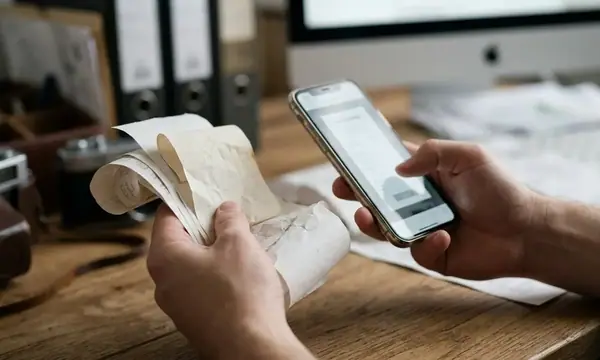
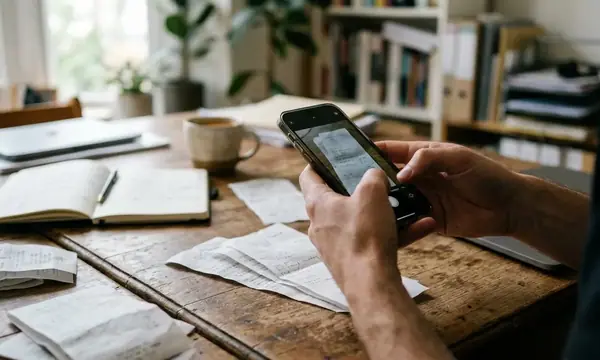
For the appliance, flatten the receipt and photograph it in even light. Keep the merchant, purchase date, item descriptions and total legible. Check the edges before uploading; a cropped transaction detail can make the saved record less useful. A digital receipt file can follow the same upload route.
Open both saved records. Compare the extracted merchant, date, items and total with the originals. Successful upload is only the first checkpoint—readable, accurate purchase details make the record usable.
Set the Return Reminder
Read the applicable retailer policy and identify what starts the return window: purchase, shipment or delivery. Use that event to calculate the deadline, then set a reminder early enough to arrange shipping or a store visit. Check any gift-specific terms before relying on the standard window.
Keep an independent copy in storage you control. Once this routine feels manageable, consider a narrowly defined forwarding rule for recurring confirmations. Review its matches periodically because changes to a retailer's sender address or subject wording can affect what gets sent.
Read the Email Provider's Permission Screen
A label such as “receipt-only import” describes an intended function. The email provider's authorization screen tells you which account resources the app can access.
Begin with the account name. Connecting a shared household mailbox has different consequences from connecting an address used for shopping. Then read the resource description: does access cover selected messages, a restricted resource, message metadata or a broader mailbox?
Provider-enforced restrictions set the technical boundary. App-side filtering works within the access already granted. If the provider allows broad reading and the app selects receipts afterward, unrelated messages remain within its authorized reach.
Question Extra Message Controls
- Read: Identify which messages or resources the app can retrieve.
- Send: Ask what part of receipt tracking requires sending mail from your account.
- Modify or delete: Consider whether changing mailbox contents serves your intended workflow.
- Continue accessing: Check whether the connection remains active for future messages.
Decline a connection when its capabilities exceed what you are willing to grant. Uploading or selectively forwarding a receipt keeps the purchase-tracking task moving without accepting that authorization. Also distinguish a single import from continuing synchronization: the latter can cover future incoming messages without another setup prompt.
Follow the Receipt After It Leaves Your Device
Once a receipt reaches a service, the privacy question shifts to the information already transferred. That can include the original image, email text, attachments and extracted fields such as merchant, item, price and payment details.
Look for concrete answers in the service's privacy, storage and deletion documentation:
- Does text extraction happen on the device, on remote servers or through a combination?
- Does the service retain the original receipt alongside the extracted purchase record?
- Which service providers receive files or purchase information for processing?
- Does the service use purchase information beyond the tracking function you requested?
- What retention period or deletion event applies to each kind of information?
Give retention language particular attention. “Stored while your account is active” identifies an account-based trigger, but the next question is what happens when you delete a receipt or close the account. Look for an explanation covering the underlying file, extracted fields, processors and retained copies.
Be precise when removing personal details before transfer. Unrelated conversation can go; transaction details needed for purchase verification should remain readable. Preserve an unedited original in your own storage so that privacy edits do not become your only proof of purchase.
Leave the App With Receipts and Deadlines Intact
Prepare the exit while you can still retrieve your records. Stopping future access and removing previously imported information require separate controls.
- Save the records you still need. Export or download receipts for open return and warranty periods. Open the saved files to check readability, and move upcoming deadlines into an independent calendar.
- Disable forwarding rules. Check your email settings for rules that send receipts to the service. These can continue operating separately from an app connection.
- Turn off synchronization. Disable connected-account imports in the receipt service's settings.
- Revoke the email connection. Open the email account's connected-app or security controls and remove the receipt service's authorization. Check that it no longer appears as an active connection.
- Address retained information. Use the receipt service's deletion or account-closure controls for imported files and purchase history. Check the request's status and the service's stated handling of retained copies.
Uninstalling the mobile app leaves account-level permissions and remotely stored receipts in place. Treat phone cleanup as the final housekeeping step after handling those controls.
Before leaving, open a saved receipt from your independent storage and check its corresponding calendar reminder. That small check confirms that your next return no longer relies on access to the old app.
Match Your Next Receipt to a Sharing Boundary
Choose uploads for deliberate file-by-file selection, forwarding for selected email confirmations, or an integration whose actual permissions match your intended boundary. Judge convenience alongside capture accuracy, useful return reminders, clear retention terms and the ability to export your records.
A photograph or manual file upload preserves the merchant, purchase date, items and total on a receipt while granting zero continuing access to your email inbox.